Fix Aion 2 stuttering, frame drops, and low FPS: Unreal Engine 5 tuning guide
Eliminate micro-stutter, tame Unreal Engine 5 shader compilation, and stabilize frame pacing in Aion 2 during high-speed aerial combat and crowded cities.
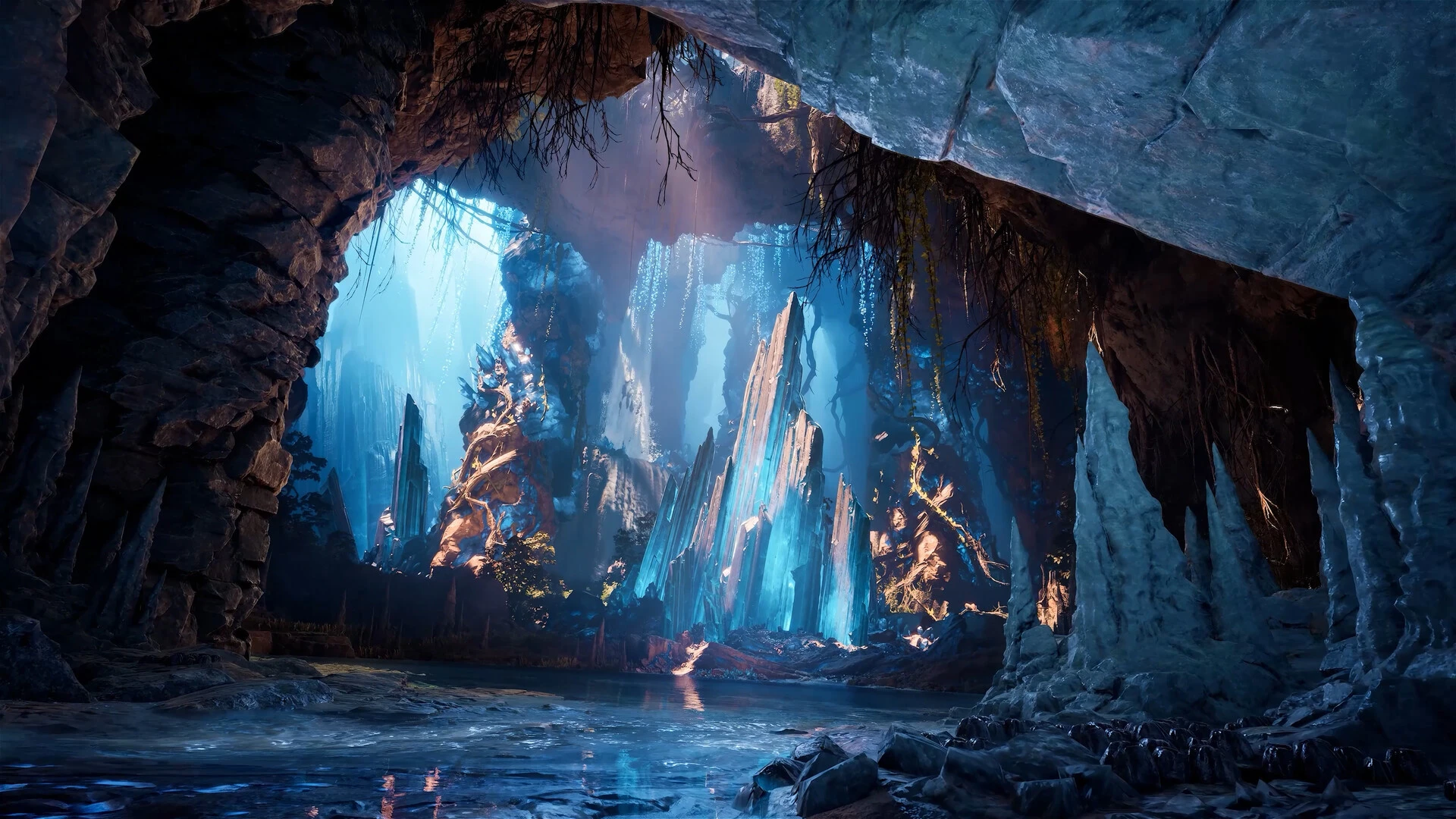
Aion 2 is a visual marvel powered by Unreal Engine 5, but feedback from the Korean and Taiwanese launches revealed an immediate pain point: stuttering. Rather than sheer low average framerates, players frequently experience harsh frame-time spikes whenever dozens of Daevas unfold their wings or cast high-particle abilities in crowded fortress plazas.
Why frame-time pacing matters more than average FPS
A framerate counter proudly displaying 100 FPS can feel deceptively choppy if individual frames take 70 milliseconds to render while neighboring frames take only 10 milliseconds. In Aion 2, where split-second flight maneuvers determine whether you dodge an aerial burst or crash into the ground, smooth 1% lows and flat frame pacing are far more vital than vanity peak framerates.
Key performance bottlenecks in Aion 2
| Setting / Engine Feature | Hardware Impact | Recommended Action |
|---|---|---|
| Shader Compilation (PSO) | Heavy hitching when rendering skills and wings for the first time | Allow a 5-minute warm-up run in open fields; do not clear GPU shader cache constantly |
| Volumetric Fog & Lighting | Extreme GPU load during high-altitude glides facing sunlight | Drop to Medium; yields up to 20% performance uplift with virtually no visual degradation |
| Player Model Display Limit | Severe CPU draw-call bottleneck in cities and sieges | Set character density to Medium or High instead of Maximum for smooth 1% lows |
| Upscaling (DLSS / FSR / TSR) | Renders at lower internal resolution with sharp reconstruction | Use Quality or Balanced mode; set in-game sharpness between 40% and 55% |
Systematic tuning checklist for your PC
- Install updated GPU drivers and reboot: Ensure you are running drivers with dedicated DirectX 12 game-ready optimizations for Unreal Engine 5 titles.
- Cap your framerate: Rather than leaving your GPU running uncapped at 100% capacity, cap your FPS slightly below your monitor’s refresh rate (e.g., 141 FPS on a 144Hz panel). This keeps your GPU cool and prevents sudden thermal throttling drops.
- Disable background screen recorders: Turn off Xbox Game Bar background capture and shadow recording suites that contend for PCIe bus and VRAM bandwidth.
- Distinguish graphical stutter from network lag: Monitor both frame time and ping. If the image freezes while your latency graph remains flat, the bottleneck is local PC hardware. If the screen is silky smooth but characters teleport mid-air, you are dealing with network route packet loss.
Pair smooth rendering with optimized routing
Once your PC delivers consistent, predictable frame delivery, any remaining gameplay delay comes down to packet transit. At that point, activating GamesTC ensures your responsive local hardware isn't held back by sluggish public internet routing to Aion 2's servers.
Test your route with GamesTC
Download the app, pick your game and compare the optimized route against your normal connection before the next match.