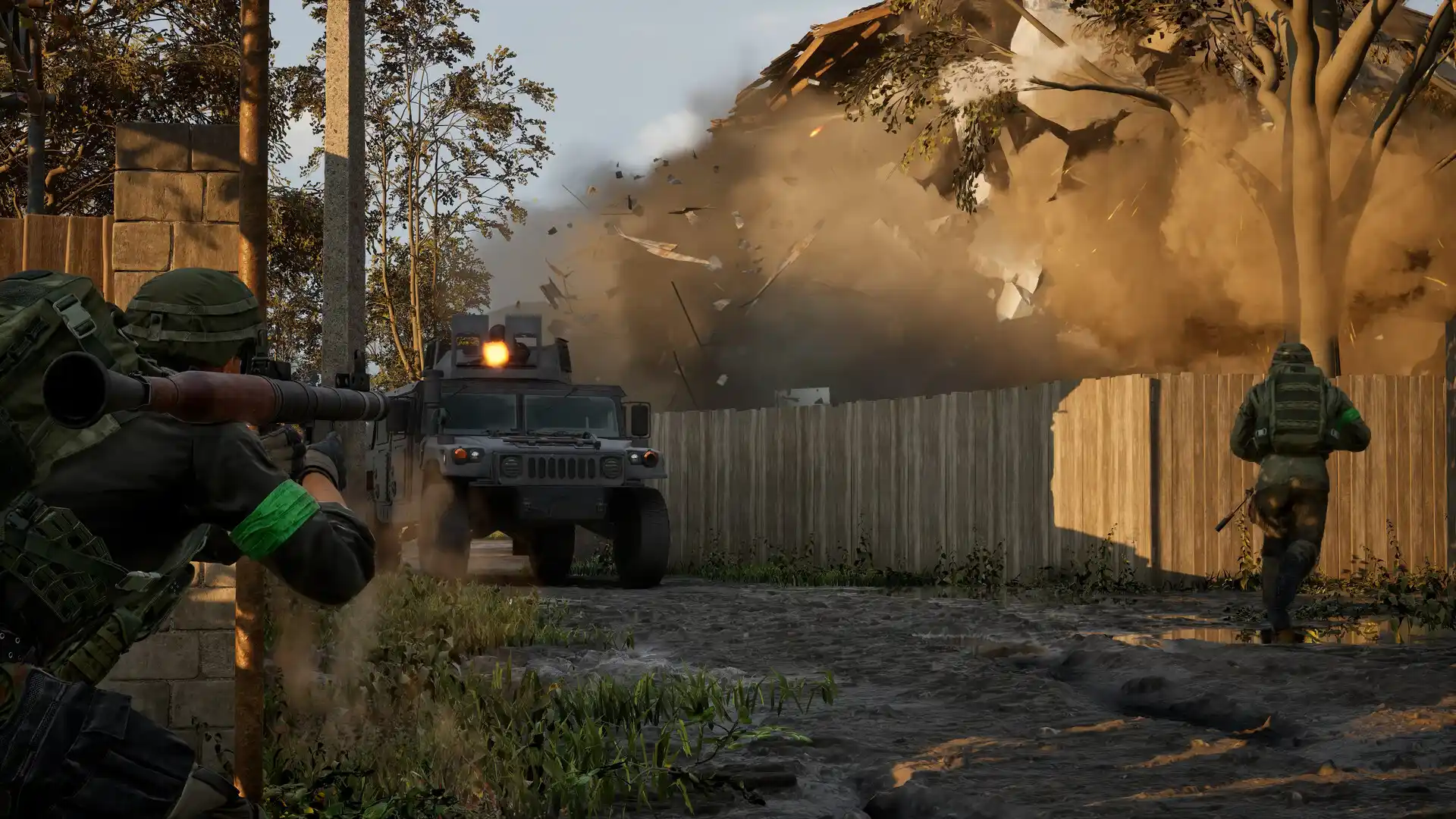
How to fix WARDOGS stuttering, frame-time spikes, and unstable FPS
Use a frame-time-first workflow to tune WARDOGS graphics, upscaling, background load, and FPS limits without hiding the real bottleneck.
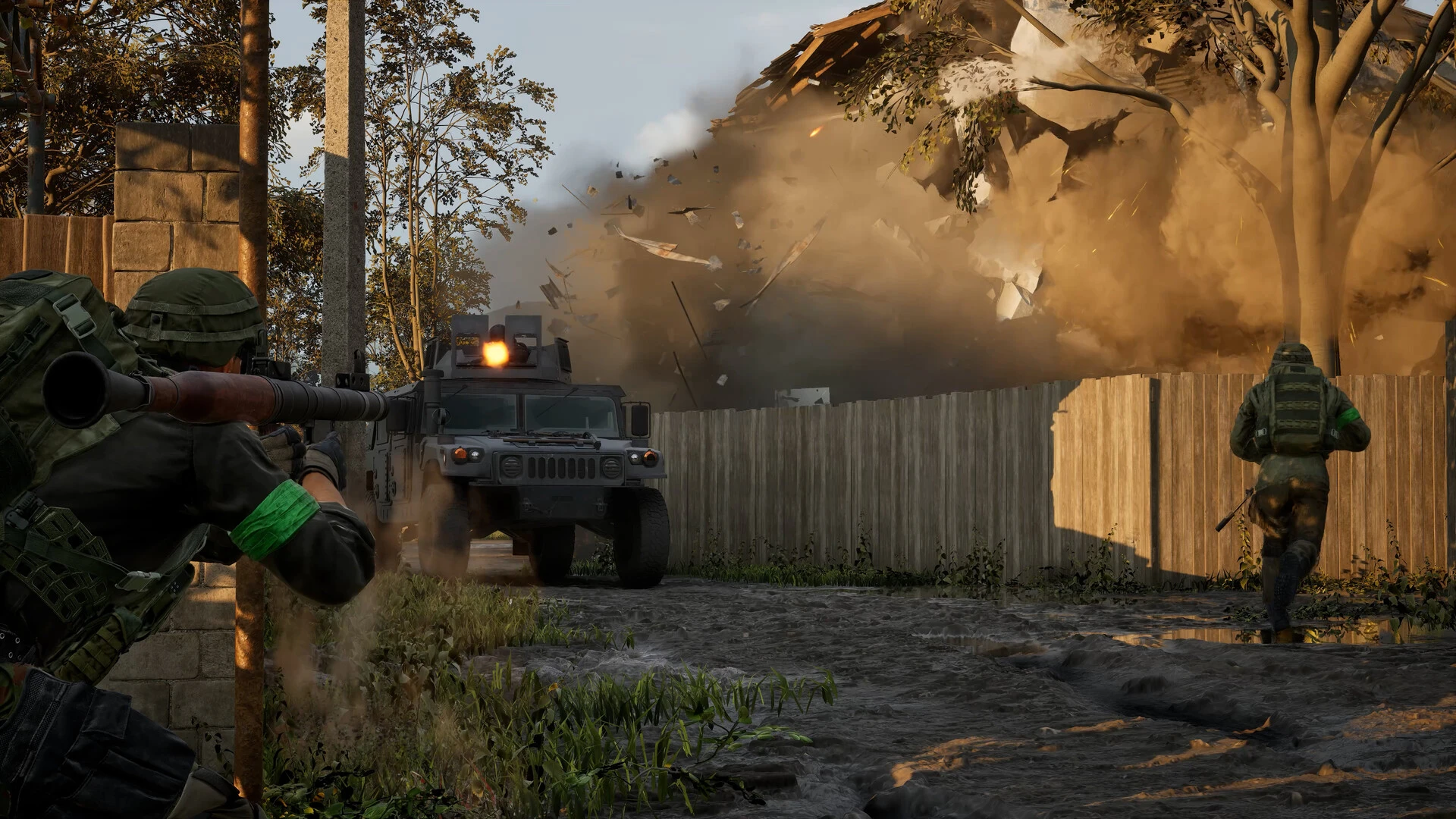
Average FPS is an incomplete performance metric. WARDOGS can report a high average while isolated frames take long enough to disrupt aiming and camera movement. The right target is a narrow, consistent frame-time graph, especially when destruction, vehicles, and many players increase scene complexity.
Start with the official performance targets
The Steam listing pairs each target with exact conditions. The minimum tier describes 1080p Low at 60 FPS using upscaling, while the recommended tier describes 1440p Medium at 70 FPS or more natively, or 4K Medium at 60 FPS or more with upscaling. Both list 16 GB of RAM. Do not detach a GPU name from its resolution, preset, CPU class, and rendering method.
Capture the shape of the slowdown
Use a monitoring overlay only if it is stable with the game and anti-cheat. Watch frame time, GPU utilization, CPU core load, memory use, temperature, and clock speed. A flat GPU load near its limit suggests lowering resolution or GPU-heavy effects. Low GPU usage with one busy CPU thread can point to simulation, draw-call, or background-process pressure. Rising memory followed by disk activity suggests paging.
Build a controlled preset
- Verify game files and restart after installing a graphics driver.
- Disable unnecessary recording, browser video, RGB suites, and third-party overlays.
- Choose one upscaler mode and keep it fixed during the comparison.
- Lower shadows, effects, view distance, and destruction-related detail in separate passes.
- Cap FPS slightly below the rate the system can hold during a demanding battle.
A sustainable cap often feels smoother than a fluctuating uncapped result. Match the Windows display refresh rate to the monitor and confirm that an external control panel is not imposing a second, conflicting cap.
Warm up before judging a patch
Fresh drivers or game updates can trigger new shader work. Measure after a short warm-up and revisit the same area. Repeatedly clearing caches resets that progress and may make the next launch look worse. If every pass stutters at exactly the same location, capture that detail because it can help identify asset streaming or a build-specific issue.
Know when networking is not the fix
A gaming route changes packet delivery; it cannot shorten a slow frame rendered on the PC. Once frame time is stable, compare direct and GamesTC connections to diagnose ping separately. This order prevents a visual performance problem from being mislabeled as network lag.
Change one setting at a time, write down the result, and keep the configuration that improves 1% lows without sacrificing clarity you need for spotting targets.
Test your route with GamesTC
Download the app, pick your game and compare the optimized route against your normal connection before the next match.

Author
Equipe GamesTC
Especialistas em rotas para jogos
Conteúdo técnico sobre ping, jitter, packet loss, conectividade e desempenho em jogos online.
