Arkheron PC optimization guide: fix stuttering, FPS drops, and game crashes
Actionable steps to stabilize frame pacing, eliminate shader compilation stutters, and prevent desktop crashes during Arkheron playtests.
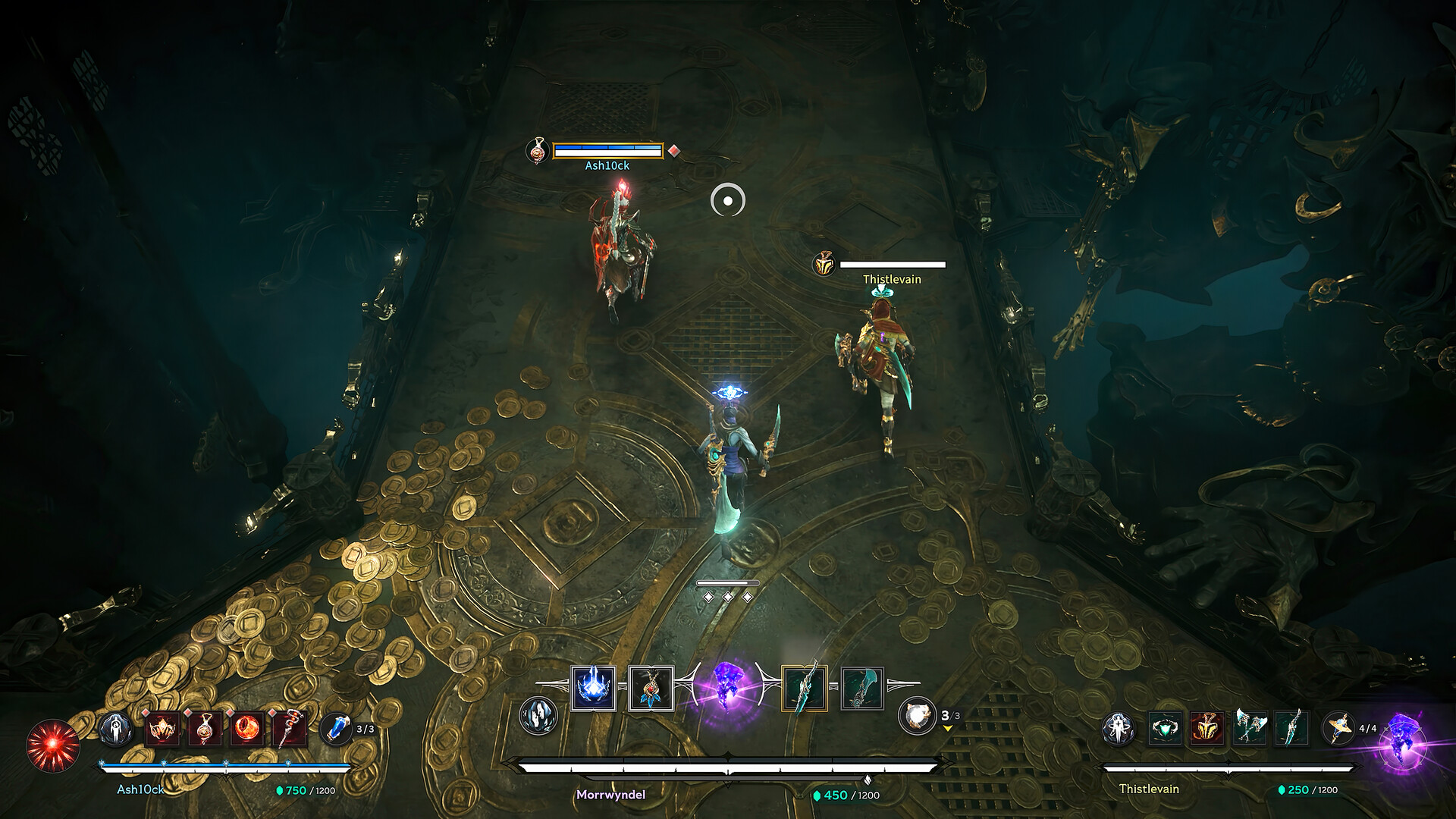
You cross into a grand subterranean crypt in Arkheron, three enemy combatants unleash particle-heavy spells simultaneously, and your screen violently hitches for half a second before crashing abruptly back to the desktop. During active Steam Playtests, micro-stutters, unoptimized shader compilation, and sudden crashes are common roadblocks for competitive players.
Hardware frametime hitching versus network lag
PC players frequently misattribute local engine stutters to connection lag. Distinguishing them in Arkheron is straightforward: if your FPS counter drops sharply from 144 to 20 while the screen visually freezes, the issue resides locally in your GPU, CPU, or storage bus. Conversely, if your framerate stays buttery smooth but enemies run in place without registering damage, your network connection is encountering packet bottlenecks.
Primary triggers behind Arkheron playtest instability
| Performance Problem | Typical In-Game Timing | Probable Root Cause |
|---|---|---|
| Shader compilation stutter | First time viewing a spell effect or entering a crypt | Real-time DirectX pipeline shader generation on the fly |
| Degrading FPS over long sessions | After completing three or four continuous dungeon raids | Thermal throttling on hardware components or memory leak |
| Silent crash to desktop | Transitioning between dungeon floors or loading screens | Corrupted Steam game cache files or virtual memory exhaustion |
Actionable PC optimization routine for Arkheron
- Verify game file integrity via Steam: Right-click Arkheron in your Steam Library, open Properties, navigate to Installed Files, and select "Verify integrity of game files". Rapid playtest patches often leave incomplete binaries behind.
- Tune graphics settings for competitive visibility: Lower volumetric fog, screen-space reflections, and dynamic shadow resolution. These settings strain your GPU without offering gameplay benefits inside dimly lit dungeons.
- Cap maximum framerate in driver software: Allowing unbounded framerates pushes your GPU into thermal saturation, prompting aggressive downclocking during heavy teamfights. Lock frames to your display refresh rate (e.g., 120 or 144 FPS).
- Install current GPU display drivers: Both NVIDIA and AMD routinely deploy shader compiler refinements specifically aimed at newly debuted Steam playtest titles.
Pairing hardware stability with dedicated routing
Once your PC sustains consistent, smooth frame pacing, eliminate the remaining variable: network delay. Combining a stable PC setup with GamesTC's private gaming tunnels ensures both lightning-fast local rendering and instant server validation across every Arkheron extraction.
Test your route with GamesTC
Download the app, pick your game and compare the optimized route against your normal connection before the next match.