EA SPORTS FC™ 27 PC Optimization: Fix Micro-Stuttering and FPS Drops
Eliminate stutter during cutscenes and corner kicks, unlock high refresh rates, and achieve smooth frame pacing in the Frostbite Engine.
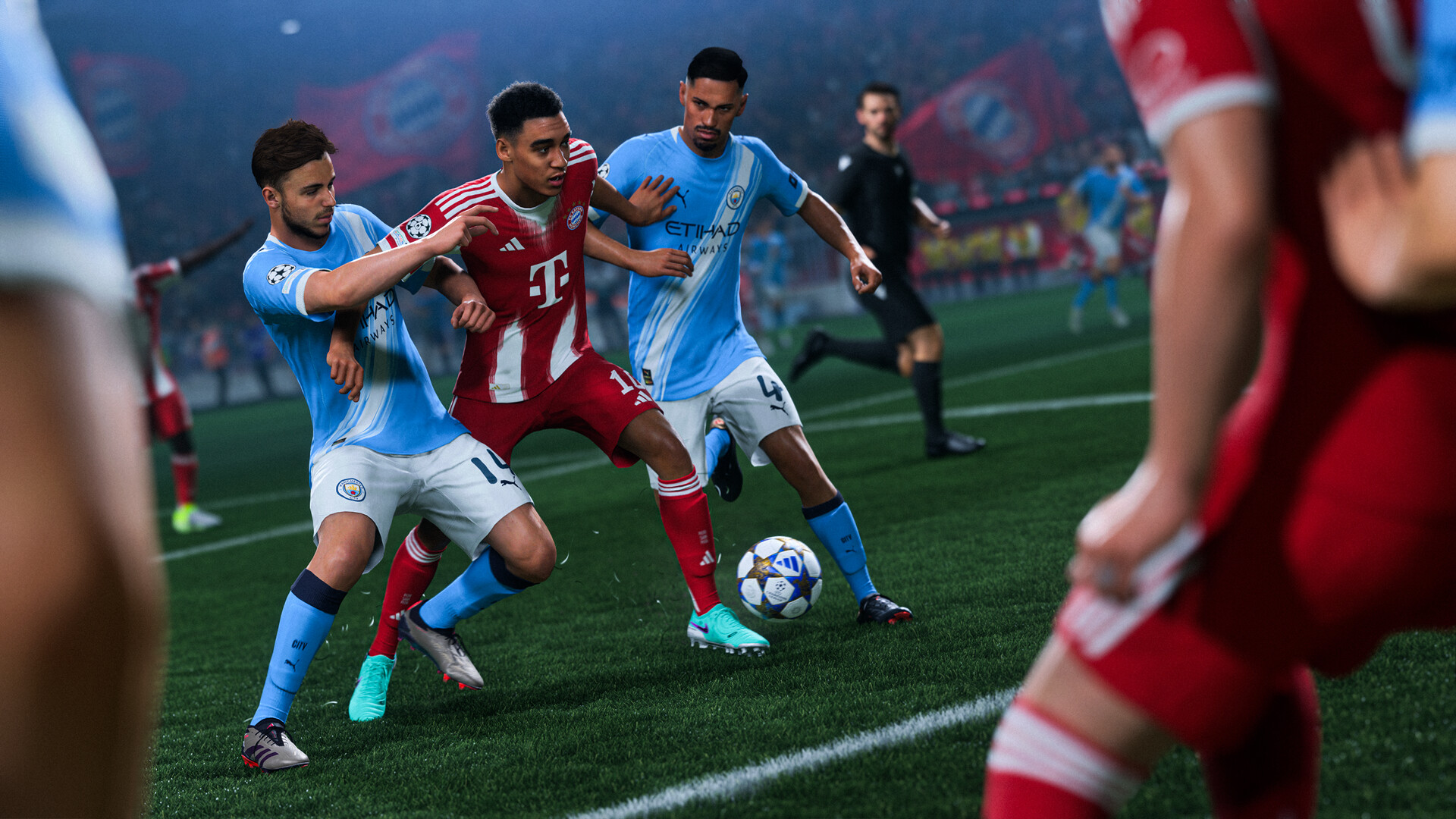
Even on gaming rigs equipped with top-tier GPUs, EA SPORTS FC™ 27 can suffer from irritating micro-stutters, especially during set pieces, celebrations, and cinematic cutscenes. Dialing in Frostbite Engine graphics options properly is the key to locking in butter-smooth frame pacing.
Why does FC 27 stutter even on high-end PC hardware?
EA SPORTS FC™ 27 runs on the Frostbite engine, powering heavy visual features like cloth simulations, strand-based volumetric hair, and real-time pitch degradation. By default, the game caps cutscenes at 30 FPS while allowing gameplay to run uncapped. This jarring frame-rate jump desynchronizes the GPU frame queue, producing annoying micro-freezes right as live play resumes.
Optimal in-game display and graphics settings
| Graphics option | Optimal choice | Technical reasoning |
|---|---|---|
| Display Mode | Borderless Windowed | Allows modern Windows desktop composition to prioritize GPU hardware scheduling |
| Refresh Rate | Monitor native maximum (144 Hz / 240 Hz) | Maximizes visual clarity and motion tracking of fast-moving ball passes |
| Frame Rate Limit | No Limit in-game (Cap via GPU driver) | The internal engine limiter introduces erratic frame time spikes |
| Dynamic Resolution Scale | Off | On-the-fly rendering scale changes trigger momentary GPU stalls |
| Strand-Based Hair | Off | High compute overhead that taxes shader cores during player close-ups |
| Grass Quality | Medium | Maintains clean pitch definition without inflating VRAM memory bandwidth |
Essential GPU driver optimizations (NVIDIA & AMD)
- Shader Cache Size: Set the Shader Cache to 10 GB or Unlimited in the GPU control panel to eliminate mid-match compilation stutters.
- Low Latency Mode: Enable "Ultra" or AMD Anti-Lag to suppress GPU rendering queues and sharpen input reaction time.
- Driver-level Frame Cap: Lock your maximum frame rate 3 FPS below your display refresh rate (e.g., 141 FPS on a 144 Hz panel) to maintain G-Sync/FreeSync smoothness without V-Sync lag.
Telling hardware stutters apart from network lag
If commentator audio and stadium crowd sounds stutter simultaneously with the video, your local PC hardware is hitting a bottleneck. If stadium animations and audio remain fluid while ball trajectory abruptly halts, you are experiencing network transit jitter. Combine clean PC settings with GamesTC routing for the ultimate seamless match experience.
Test your route with GamesTC
Download the app, pick your game and compare the optimized route against your normal connection before the next match.